
 Community
 Video Library
 Agent Training
 Freshservice
 Freshdesk
 Freshchat
 Freshcaller
 Freshsales
 Freshteam
 Freshworks Neo
 Freshsurvey
TABLE OF CONTENTS
You can move a Freshworks account from one organization to another using a streamlined and approval-based workflow. This process ensures secure transfer of users, configurations, and access settings.
The transfer involves two procedures:
The destination organization requests an account transfer.
The source organization approves the account transfer request
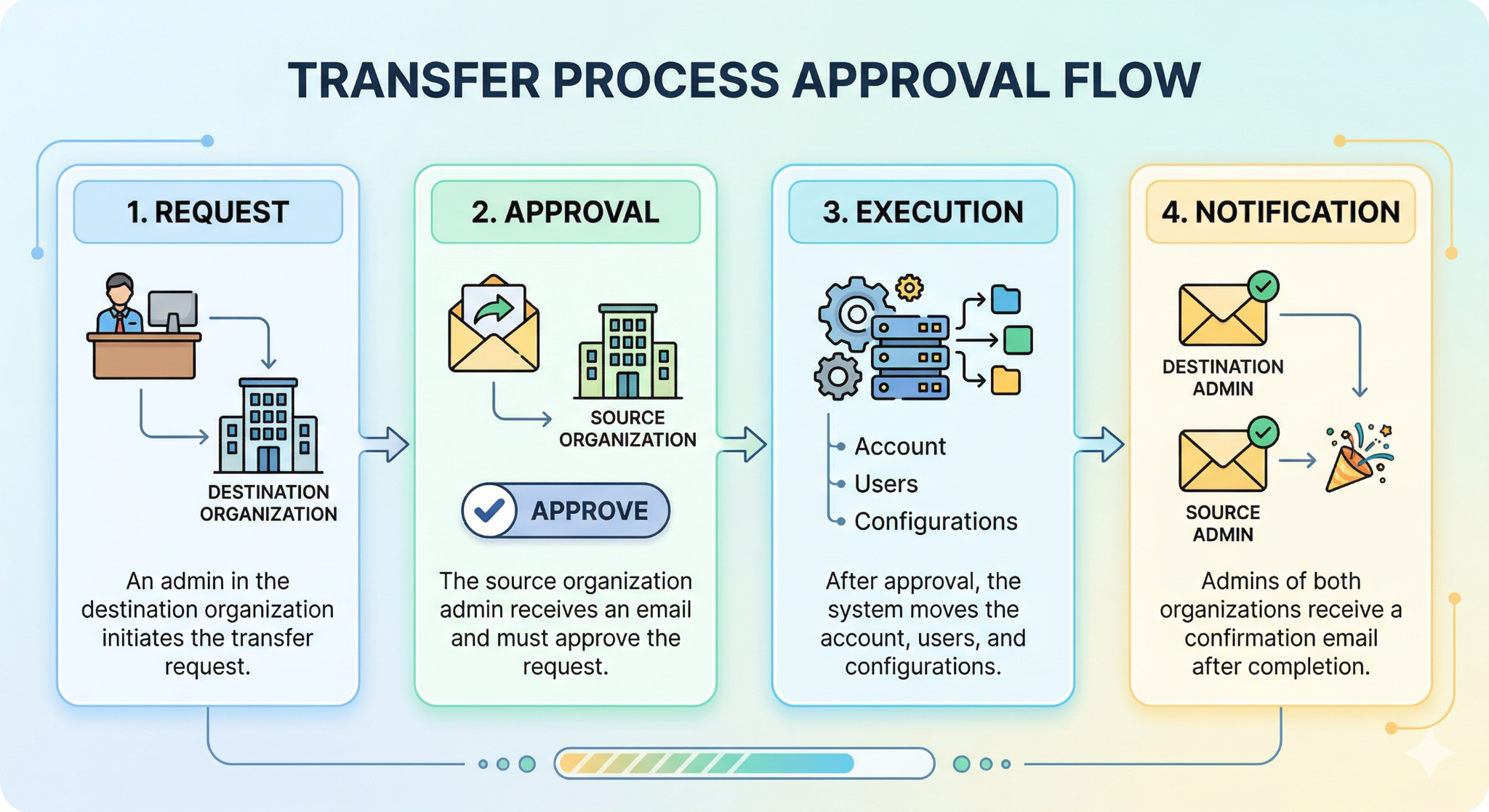
The transfer process follows a controlled approval flow as shown in the following image:
Initiate account transfer request
Administrators can initiate requests for destination organizations to move accounts into their organizations. Follow these steps to initiate a request to move an account into your organization.
Log in to the Freshworks as an admin and go to Admin Center.
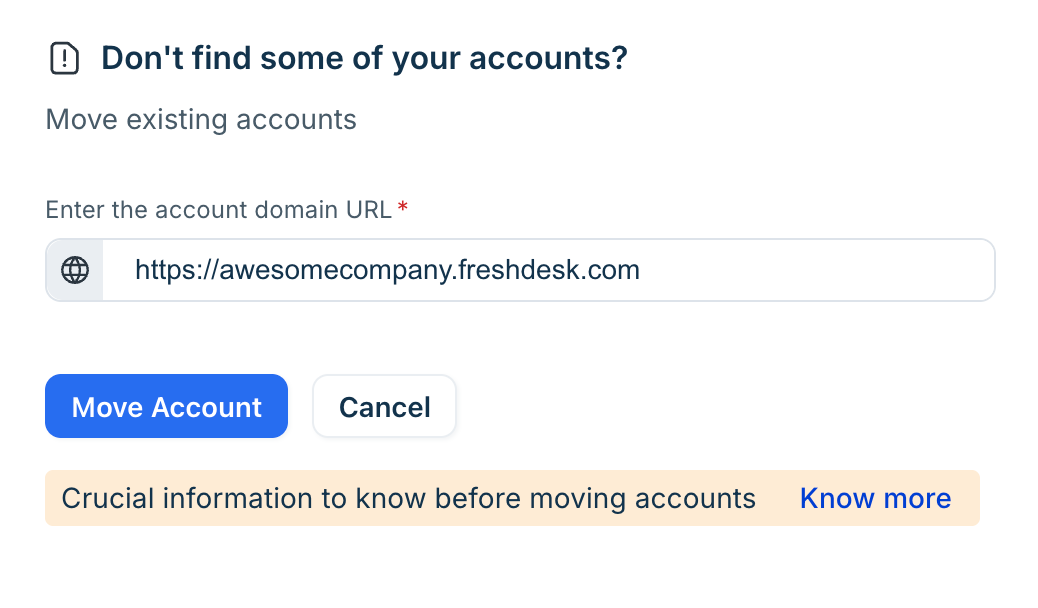
Under Move existing accounts, enter the domain URL of the account you want to transfer to your organization.
Click Move Account.
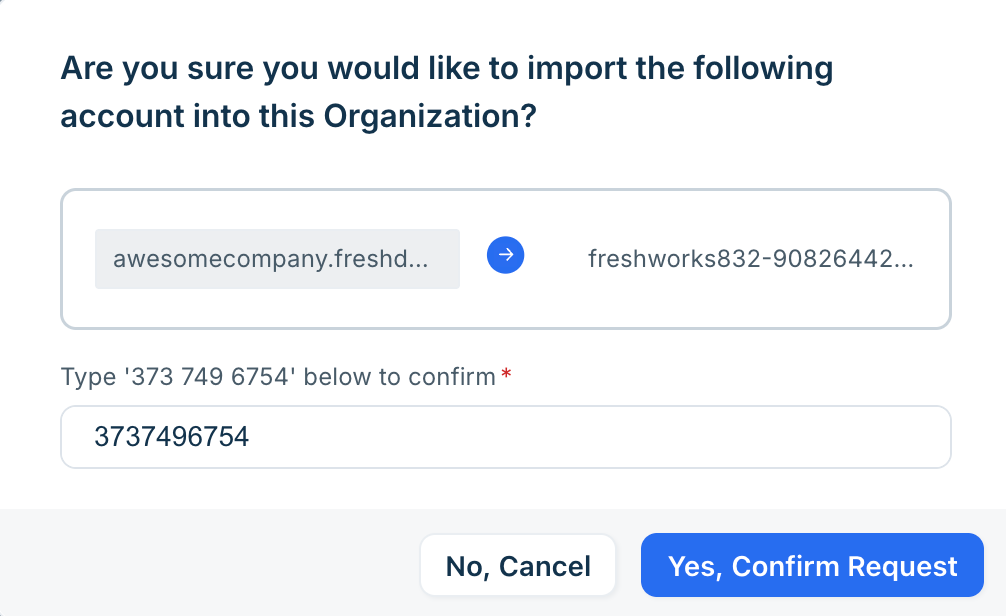
A dialog box is displayed with a code to confirm your account transfer request.On the dialog box, enter the code and click Yes, Confirm Request.
An email notification will be sent to the source organization.
After the source organization approves the account transfer request and the request is complete, you will receive an email confirming transfer of the account.
Approve an account transfer request
If a Freshworks account is moving from your organization, if the destination organization requests for a transfer, you can approve the same through the Admin center.
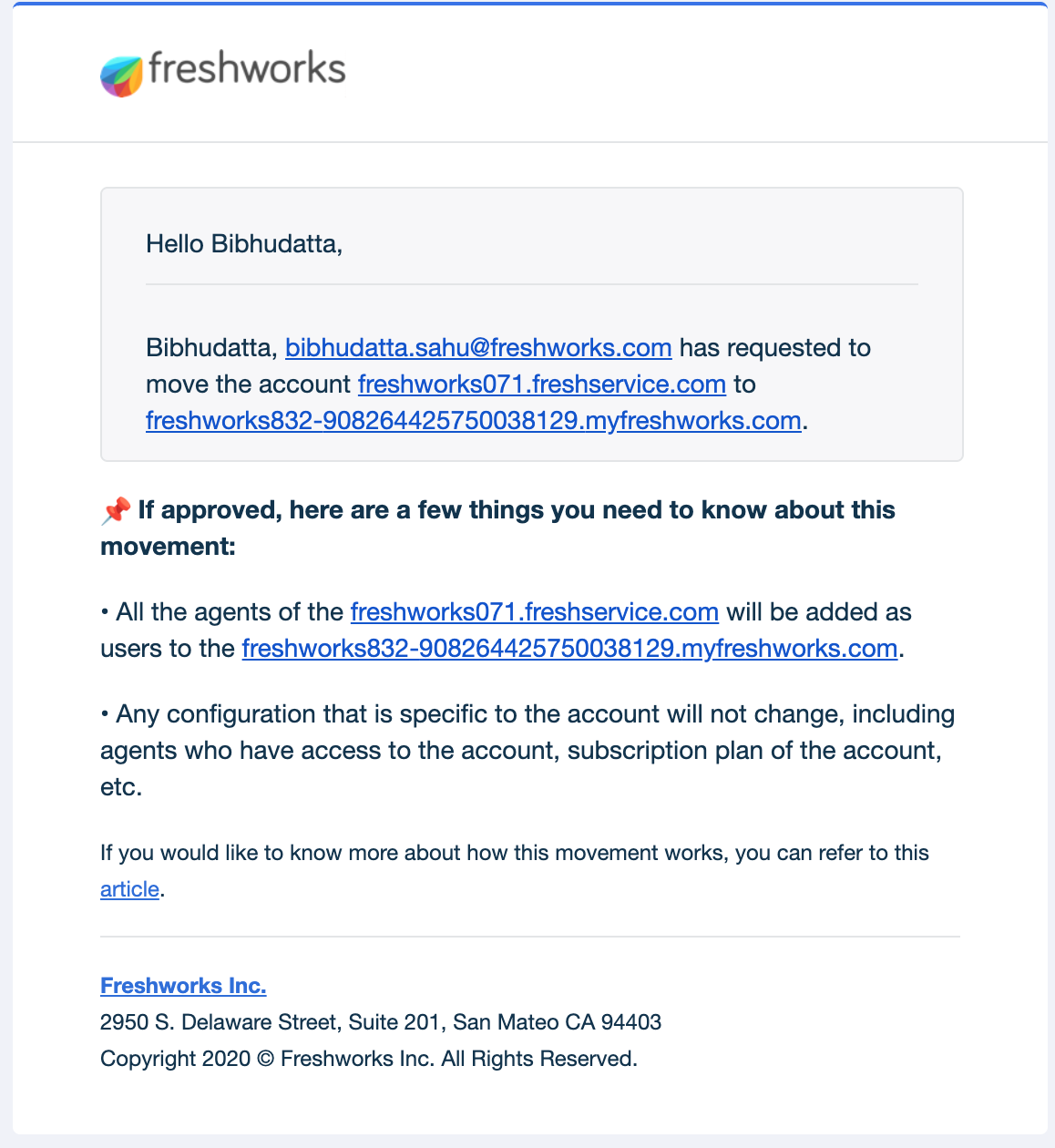
When an organization submits a request, you will receive an email.
Prerequisites
Before you approve a transfer request, ensure the following:
Audit aliases - Check for overlapping email aliases across both organizations.
Back up Freshconnect data - Export any required chat or discussion data.
Notify users - Inform users about changes to login URLs and security policies.
Verify SSO configuration - Ensure your identity provider (for example, Okta or Azure AD) supports users from the destination organization.
Follow these steps to approve a Freshworks account transfer request.
Log in to the Freshworks Admin Center.
If there is an account transfer request, you will see the option as shown in the following image.
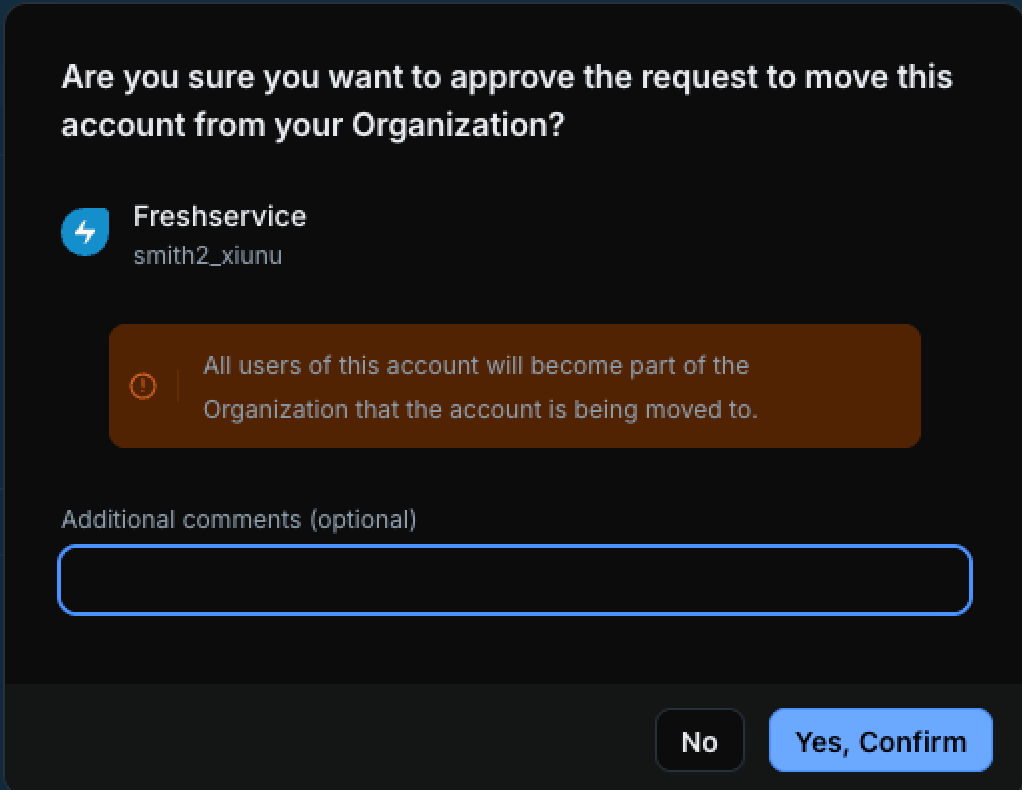
Review the account, and click Yes, Confirm.
(Optional) Enter any Additional comments for your records.
After the account is transferred to the destination organization, you will receive a confirmation email.
Security and authentication changes
After the transfer, the destination organization’s security settings are applied as follows.
Redirected sign-ins
Users are redirected to the destination organization’s login page. The previous login URL no longer works.Policy inheritance
The account adopts the destination organization’s:Password policies
Single sign-on (SSO) configuration
Multi-factor authentication (MFA) settings
Temporary sign-in issues
Users might experience temporary sign-in failures during the transfer. This issue resolves after the migration is complete. Admins receive notifications when the transfer starts and finishes.
Data and configuration changes
The following data remain the same as the source organization:
Agent access and permissions
Roles and access levels remain the same.Workflows
Groups, ticket assignments, and automation rules continue to work.Subscription
Existing billing plans and subscriptions are not affected.
The following data is changed according to the destination organization:
Freshconnect data
Chat and collaboration data are permanently removed.
Note: Accounts linked with Freshdesk Omni 2023 cannot be transferred using this feature.
Resolve user identity conflicts
When you move an account, duplicate email addresses and aliases are checked in the destination organization. This prevents unauthorized access and ensures correct user mapping. The following scenarios show how the system resolves conflicts.
If an email matches an existing alias
If a transferred user’s email already exists as an alias in the destination organization, the system removes that alias from the existing user.Impact on the existing user
The existing user loses any permissions that were associated with the removed alias.Transferred user account
The transferred user is added as a new user in the destination organization and retains their original permissions.
MSP environments
In Freshservice for MSPs, the user’s primary email determines which client they are associated with after the transfer.