
 Community
 Video Library
 Agent Training
 Freshservice
 Freshdesk
 Freshchat
 Freshcaller
 Freshsales
 Freshteam
 Freshworks Neo
 Freshsurvey
TABLE OF CONTENTS
Overview
Analytics now features folder management for custom reports, enabling you to better organize your reports. You can create up to 30 private folders to categorize your My Reports view, providing a clean, flat hierarchy for easier navigation. Whether you need to group reports by project, department, or frequency of use, folder structures ensure your most important reports are quickly accessible.
You can also move or share reports to organize your workspace better. Shared folders streamline collaboration by offering a single access point. The Analytics Search also helps index at the folder level, ensuring you can locate specific groups of reports instantly.
Prerequisites
Ensure you have the following, as part of the prerequisites:
Account administrator privileges for reporting and analytics within Freshservice.
Analytics Pro add-on for Growth plan account, or Pro or Enterprise account.
Create folders
To create folders for your reports, follow these steps:
Log in to your Freshservice account.
Go to Reporting > Analytics.
Click +Folder next to My reports.
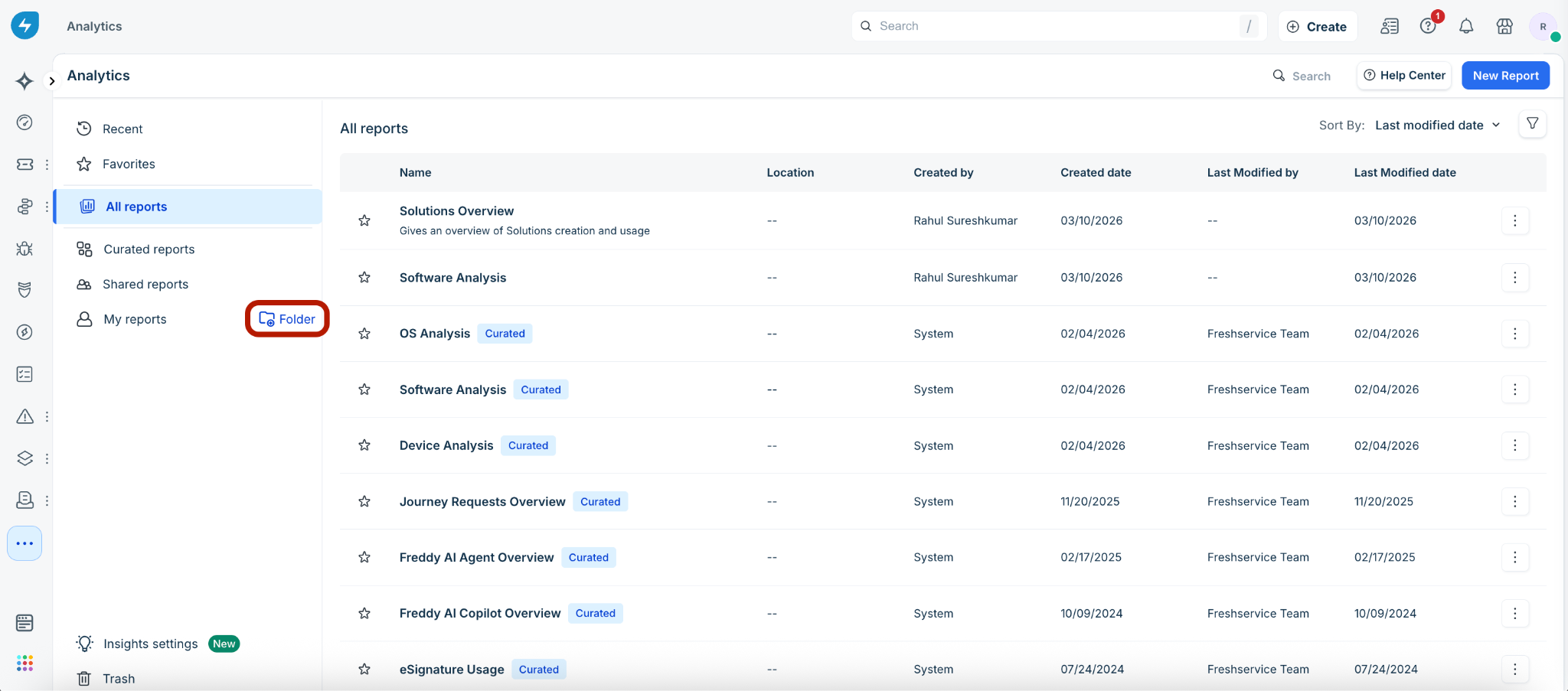
In the Create new folder dialog, enter the folder name and description.
Note:
You can also select a color from the folder icon dropdown under Folder name.
The Show description in home page checkbox is selected by default.
Click Create folder.
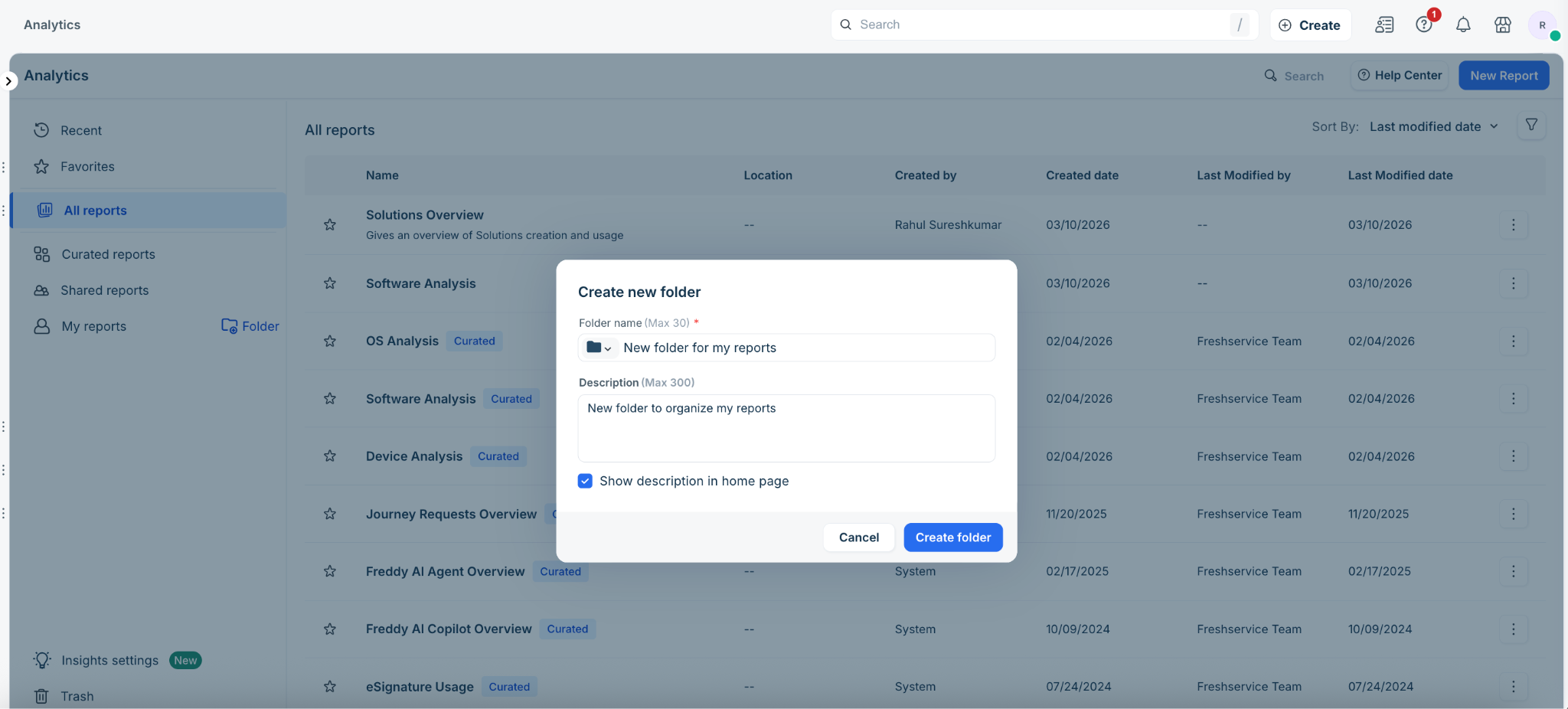
The new folder is created and added under My reports.
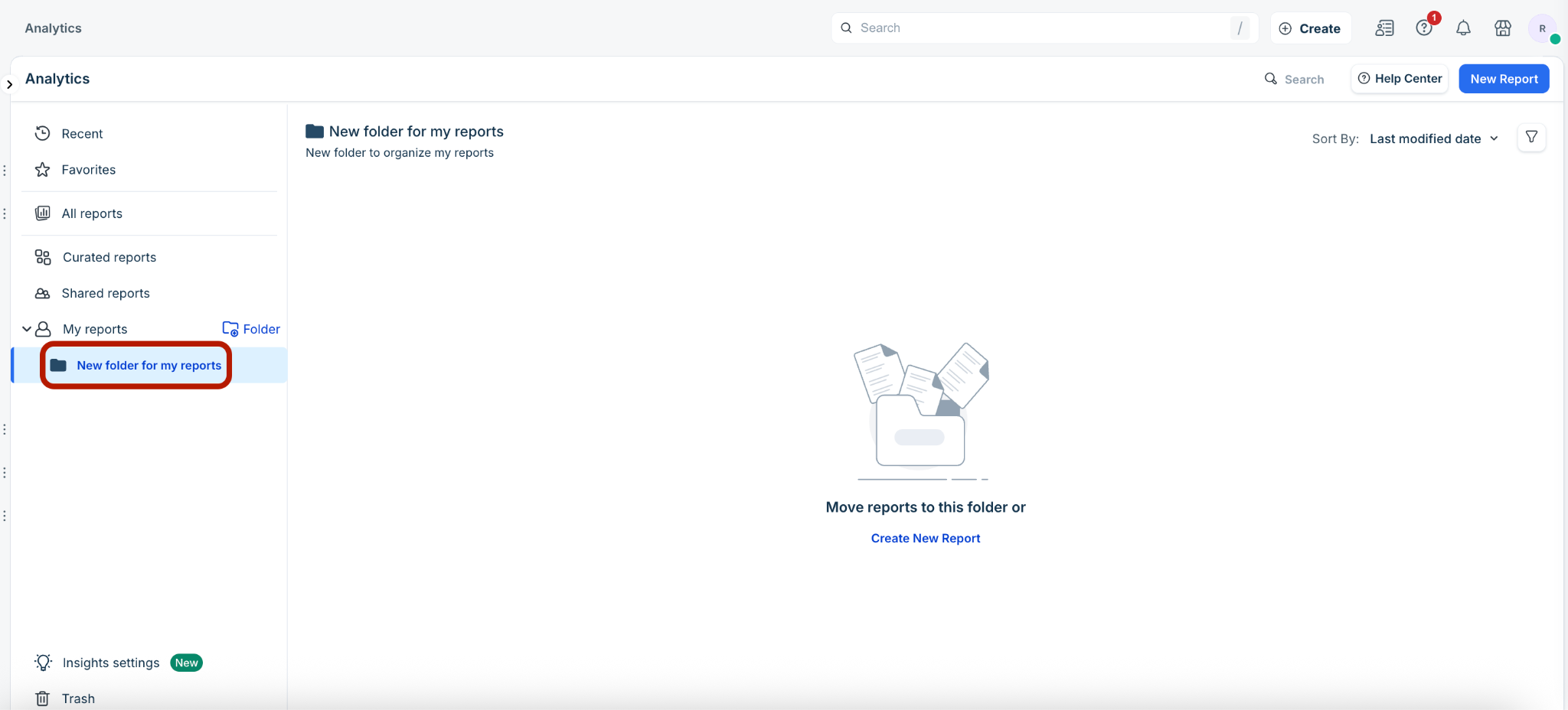
You can either create a new report under the folder or move reports to the folder. To create a new report, see Building a new report.
To move reports to the folder, go to All reports.
Note: After you create the first folder, the All reports and My reports list views display the Reports and Folders tabs for quick access to your custom reports and folders.
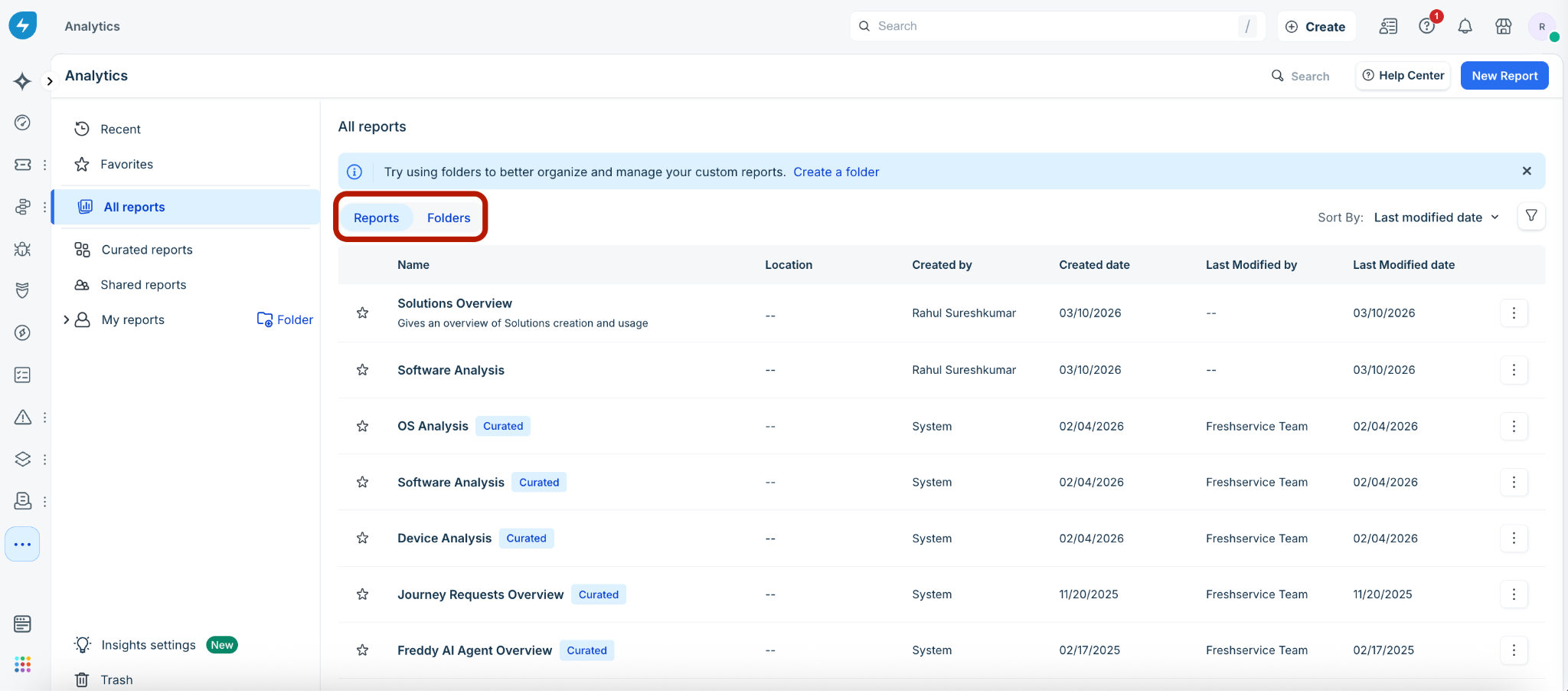
Click the ellipsis icon next to a report, and select Move to Folder.
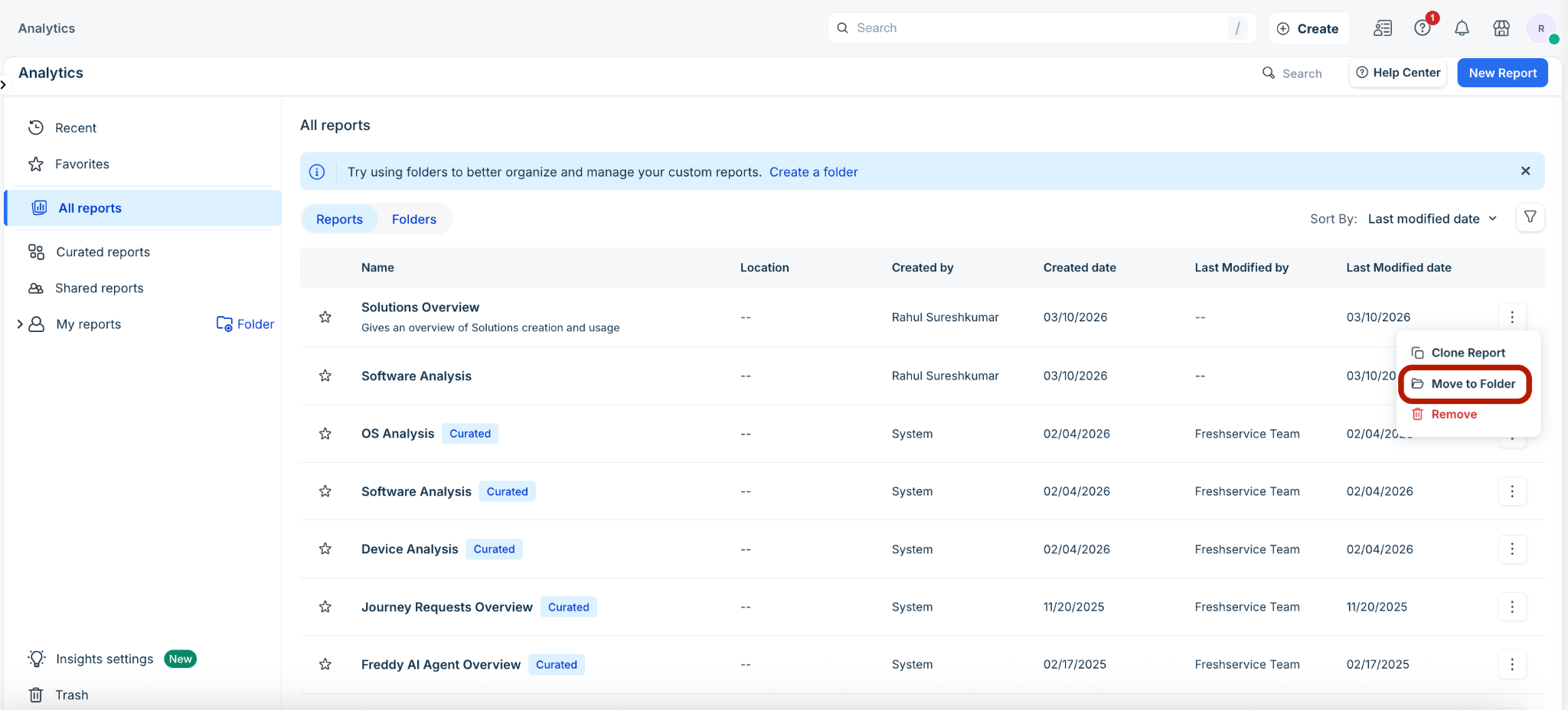
Note: Curated reports cannot be moved into folders.
In the Move reports to folder dialog, select the folder destination from the dropdown.
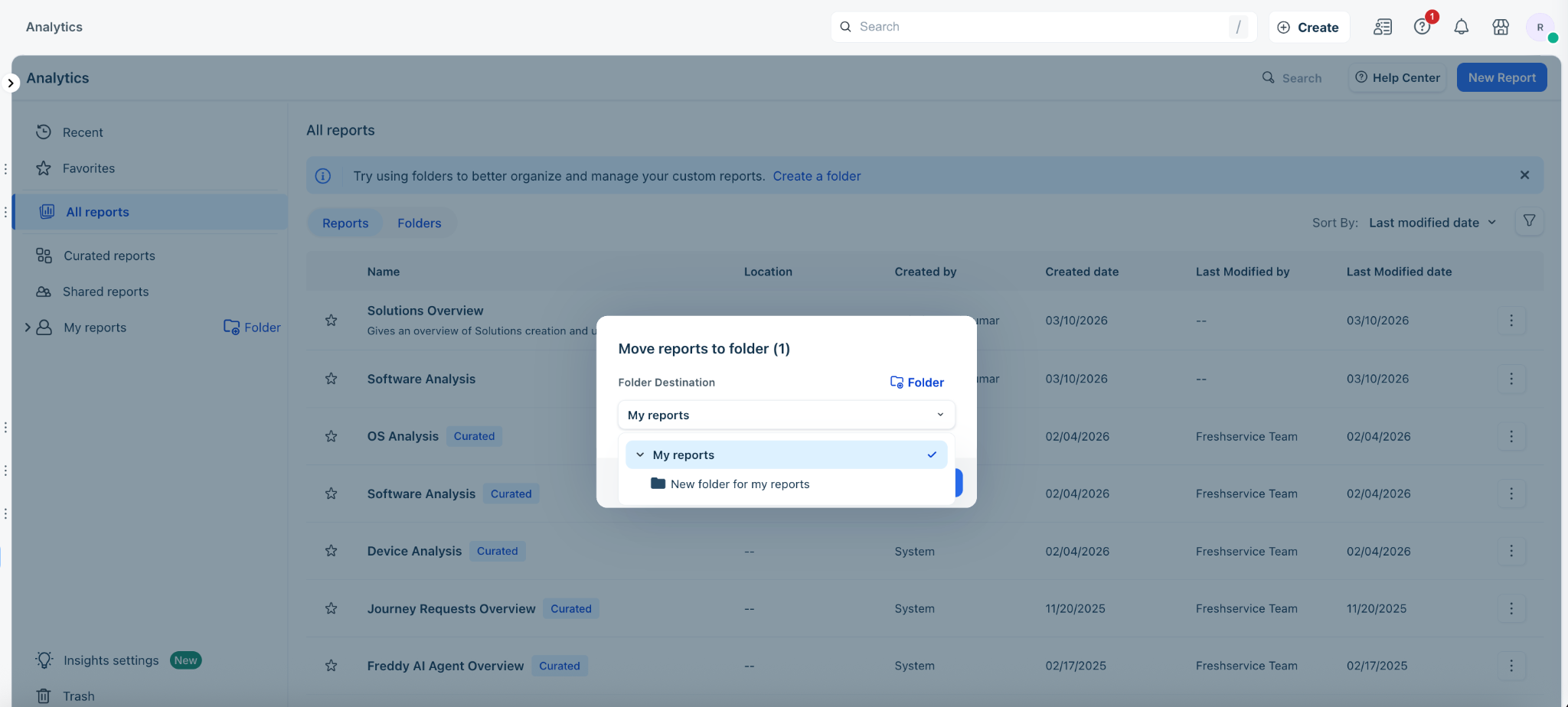
Then, click Move to folder.
Or, click +Folder to create a new folder.
Note: Follow steps 4 and 5 to create a new folder, and then move reports to the new folder.
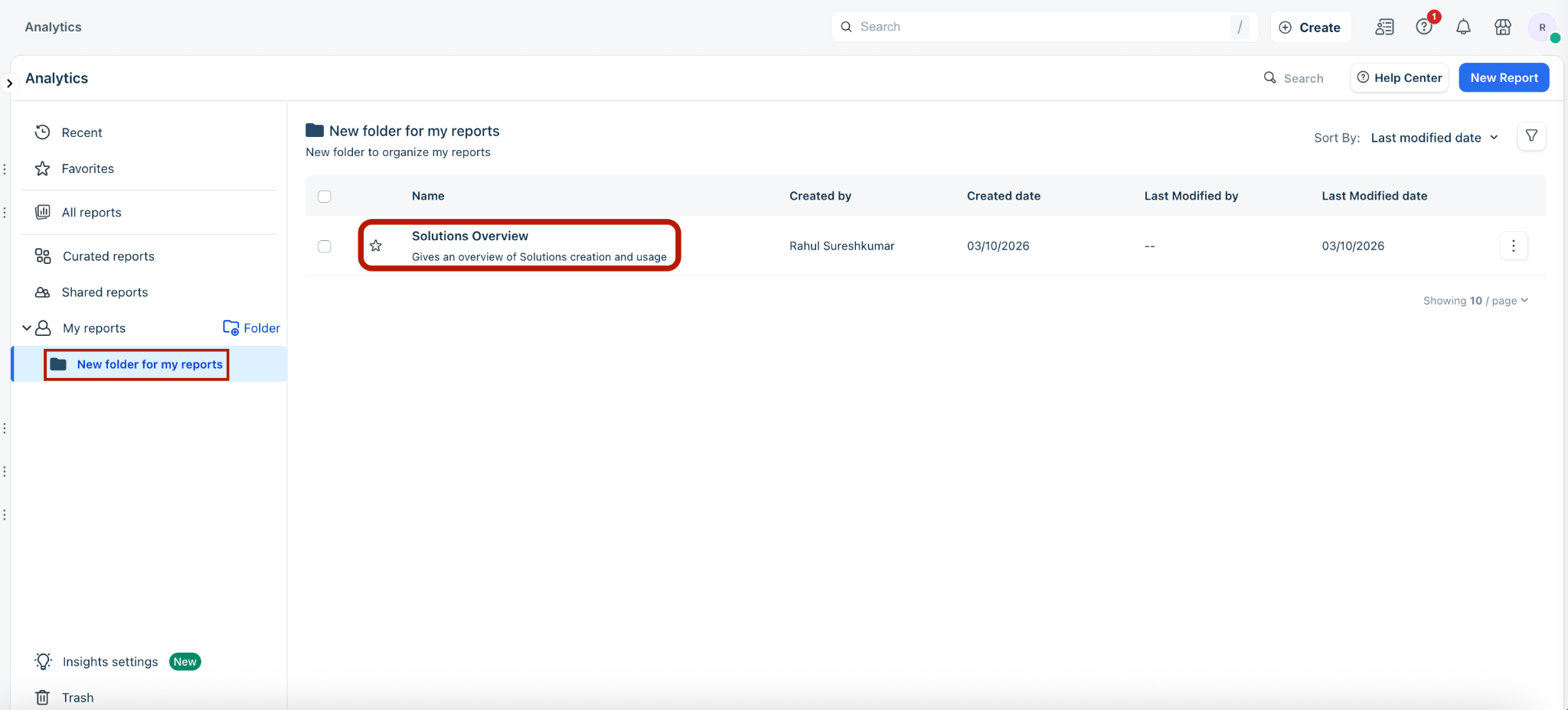
The report is moved to the selected folder under My reports.
Manage folders
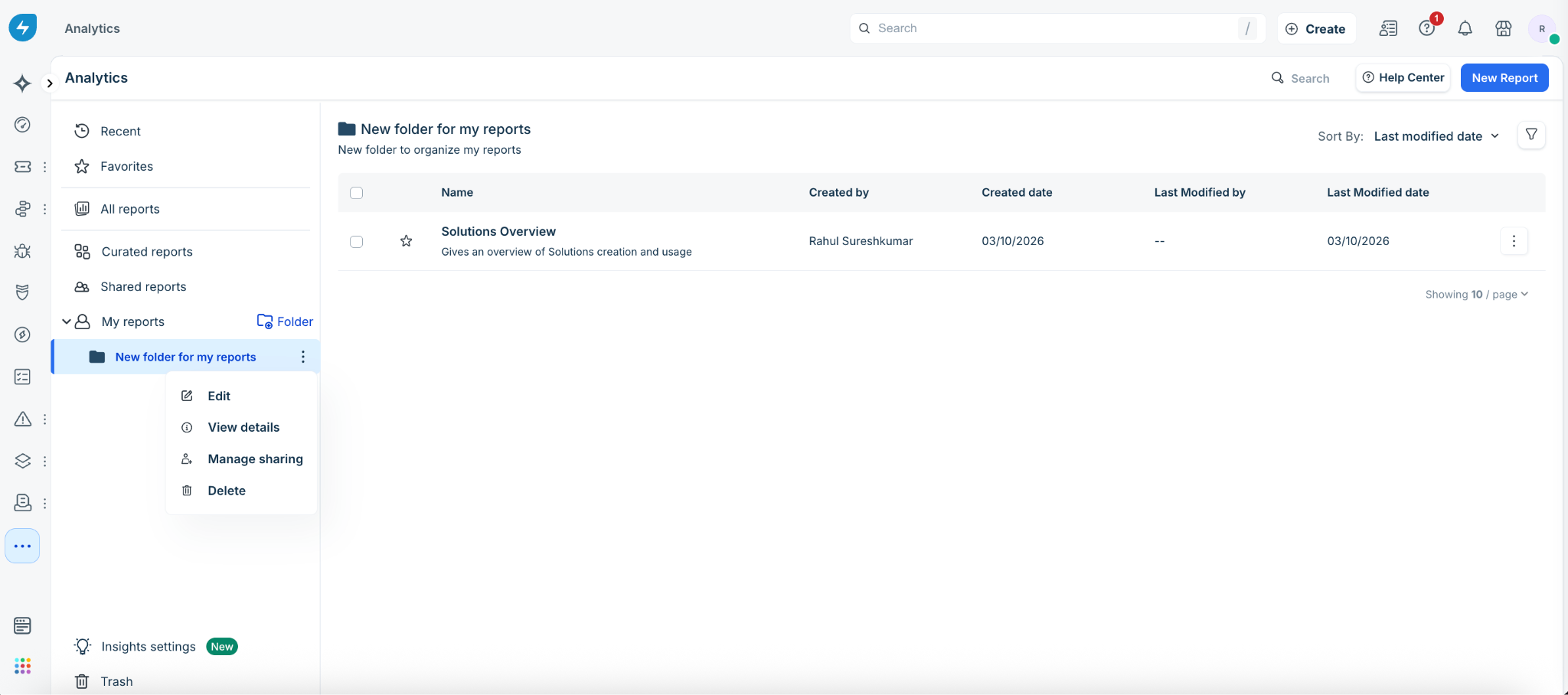
You can edit, view details, manage sharing, or delete folders. See Share folders for Analytics reports for information on managing folder sharing.
To edit, view details, or delete folders, follow these steps:
Log in to your Freshservice account.
Go to Reporting > Analytics.
Click My reports to view all the folders.
(To edit the folder name, description, or color) Click the ellipsis icon next to a folder, and click Edit.
In the Edit folder dialog, make the necessary changes and click Save.
(To view folder details) Click the ellipsis icon next to a folder, and click View details.
In the Folder Details dialog, you can view all the folder details. To manage folder sharing, click Manage Access.
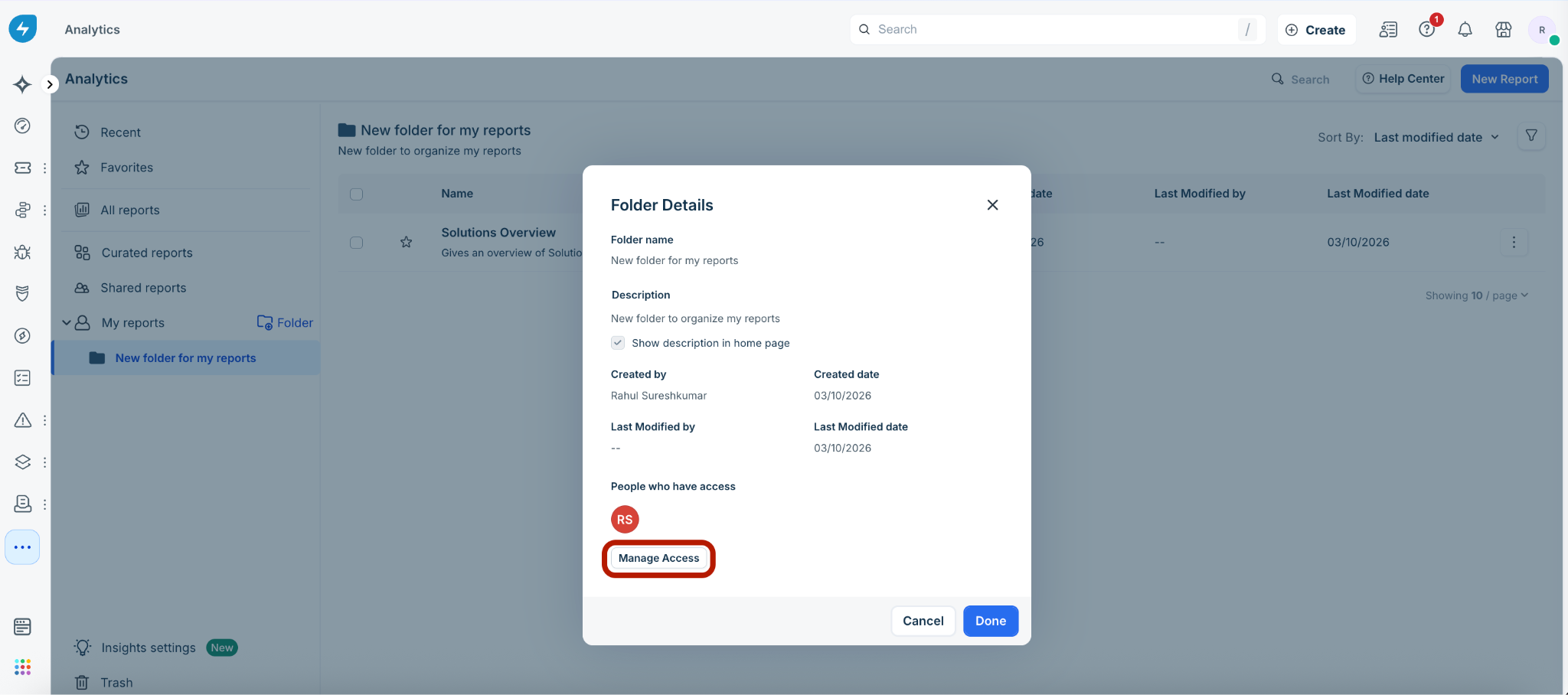
Note: You can also manage folder sharing access with the Manage sharing option available under the ellipsis icon next to a folder. See Share folders for Analytics reports for more information.
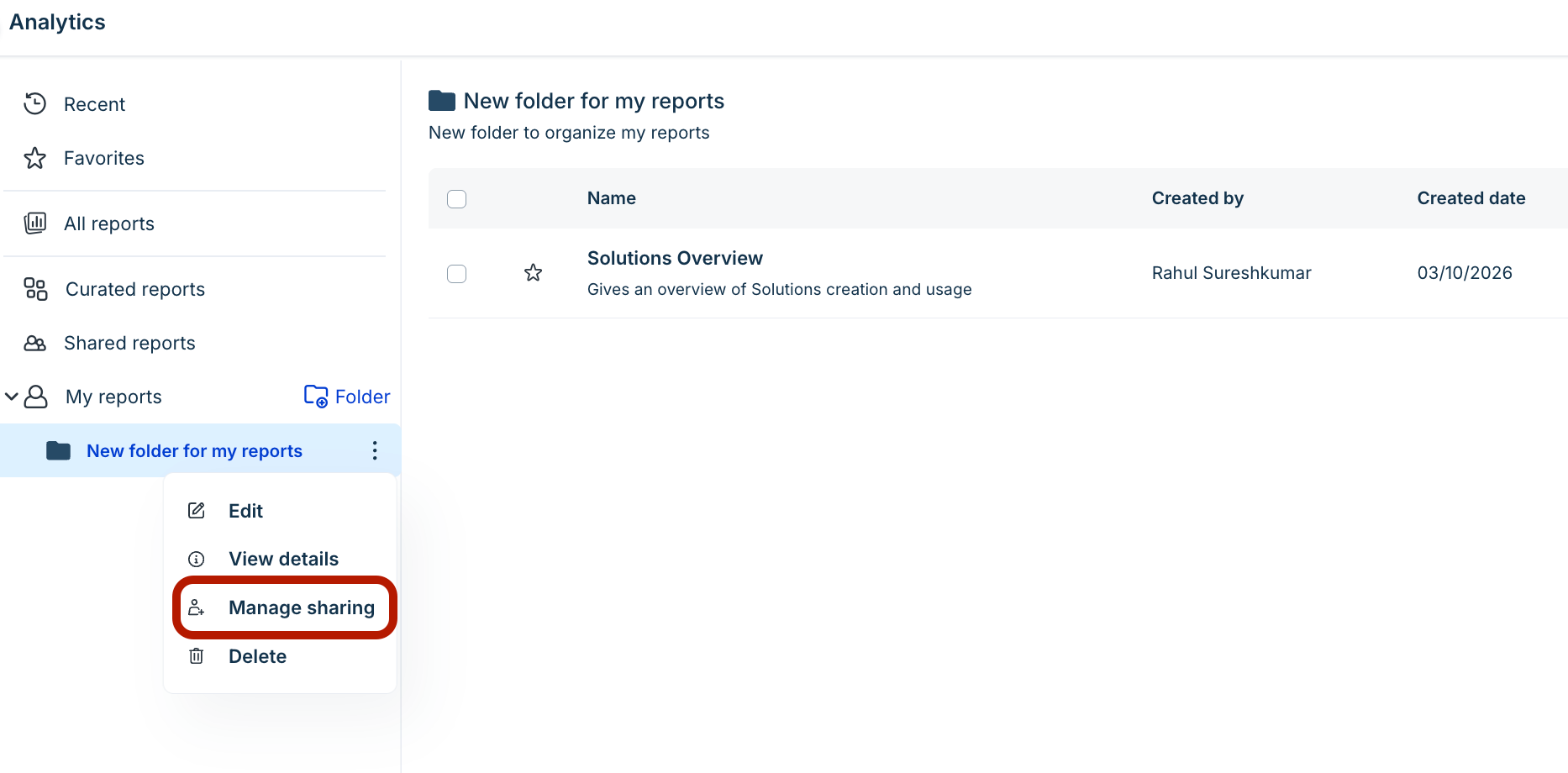
(To delete a folder) Click the ellipsis icon next to a folder, and click Delete. Then, click Delete in the Delete Folder dialog to permanently delete the folder.
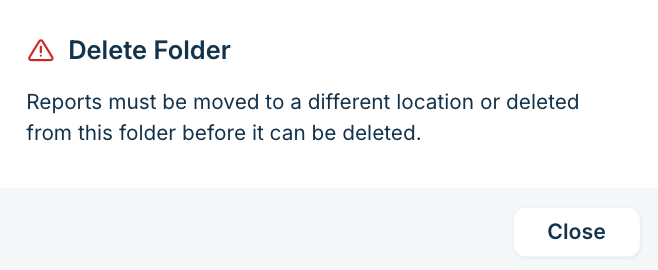
Note: Folders containing reports cannot be deleted. The following prompt is displayed when you try to delete folders containing reports.
Search folders
When you use the search option to find a report or widget, the search results also display the respective folder name and location. You can also search for folders using the folder name.