
 Community
 Video Library
 Agent Training
 Freshservice
 Freshdesk
 Freshchat
 Freshcaller
 Freshsales
 Freshteam
 Freshworks Neo
 Freshsurvey
TABLE OF CONTENTS
- Overview
- Share folders
- Folder management access levels
- Folder management roles and actions
- Folder ownership
- Move reports between folders
Overview
You can share a folder with your peers instead of sharing reports in bulk. While sharing a folder, you can set different access levels for the users, such as Viewer, Editor, or Manager. The folders can be shared with others individually or in groups. The folder you shared will be visible under Shared reports/Shared with me for the collaborator.
Share folders
To manage folder sharing, follow these steps:
Log in to your Freshservice account.
Go to Reporting > Analytics.
Click My reports to view all the folders.
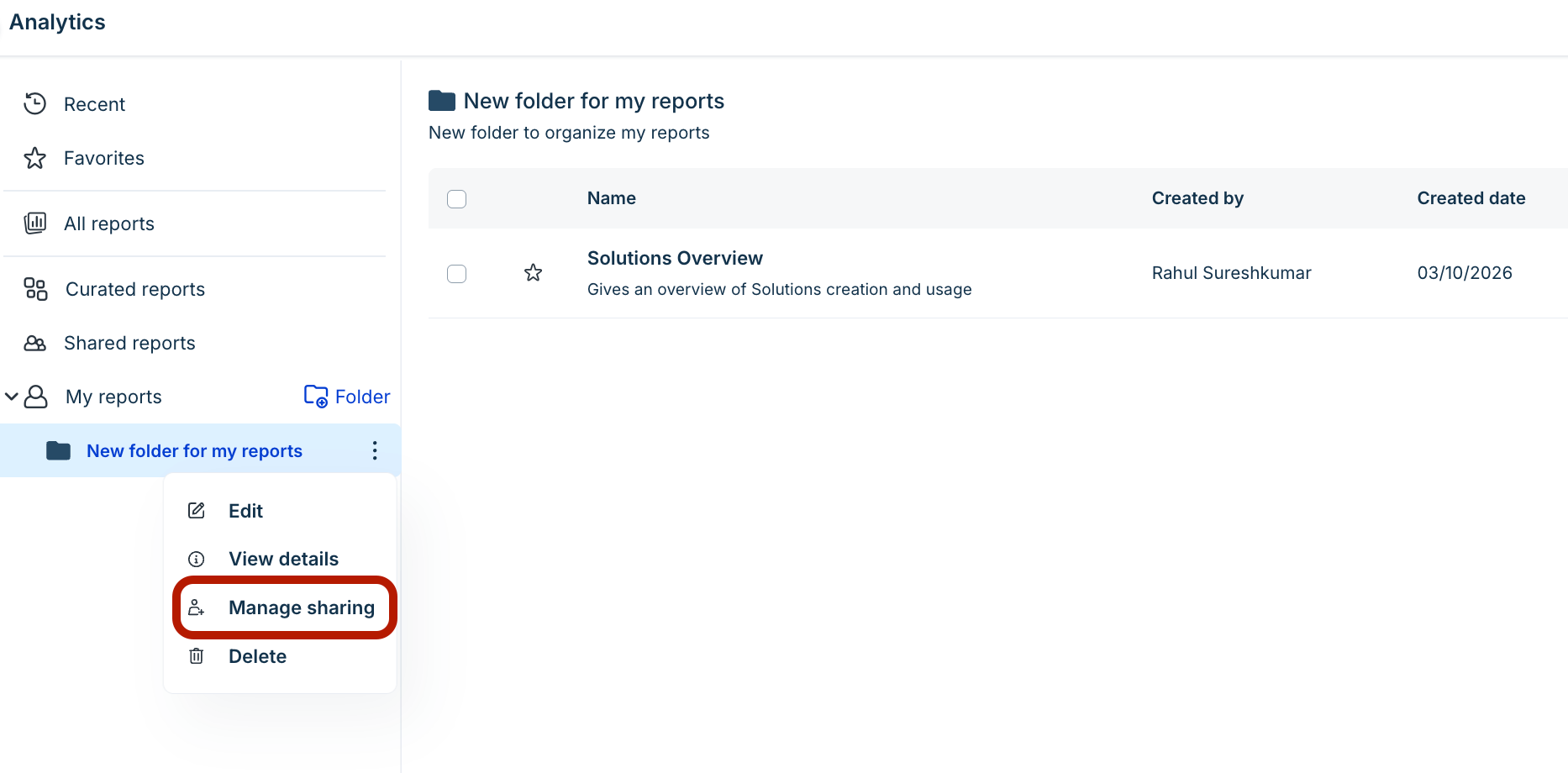
Click the ellipsis icon next to a folder, and click Manage sharing.
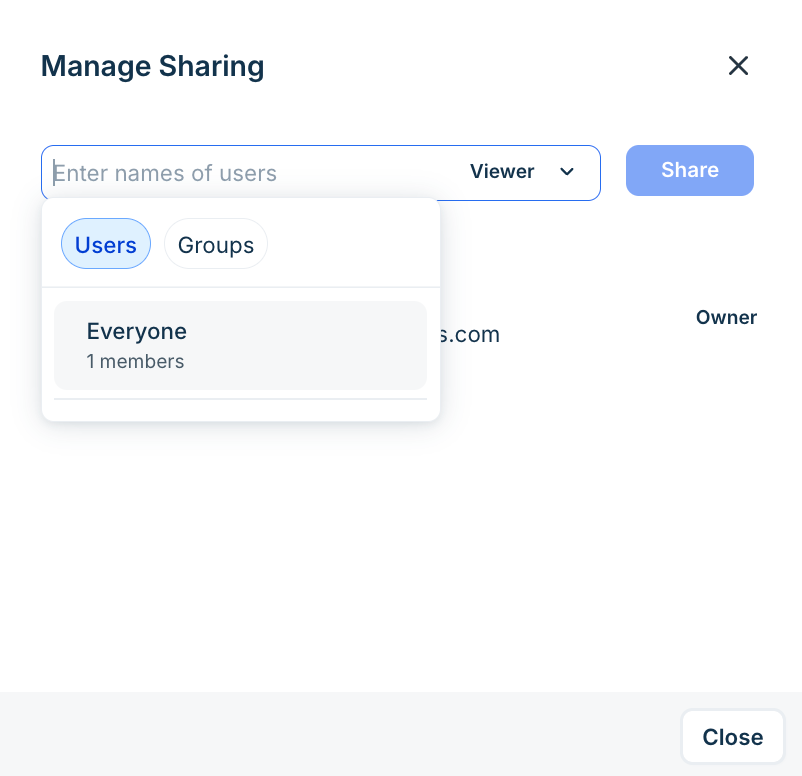
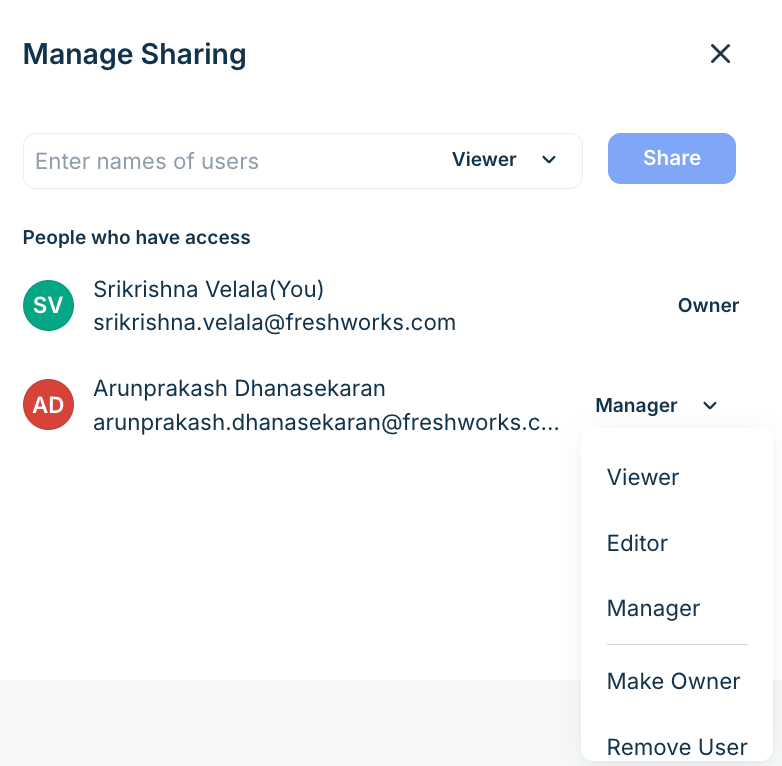
In the Manage Sharing dialog, search and select the relevant Users or Groups from the search field.
Then, select the appropriate access permissions from the dropdown.
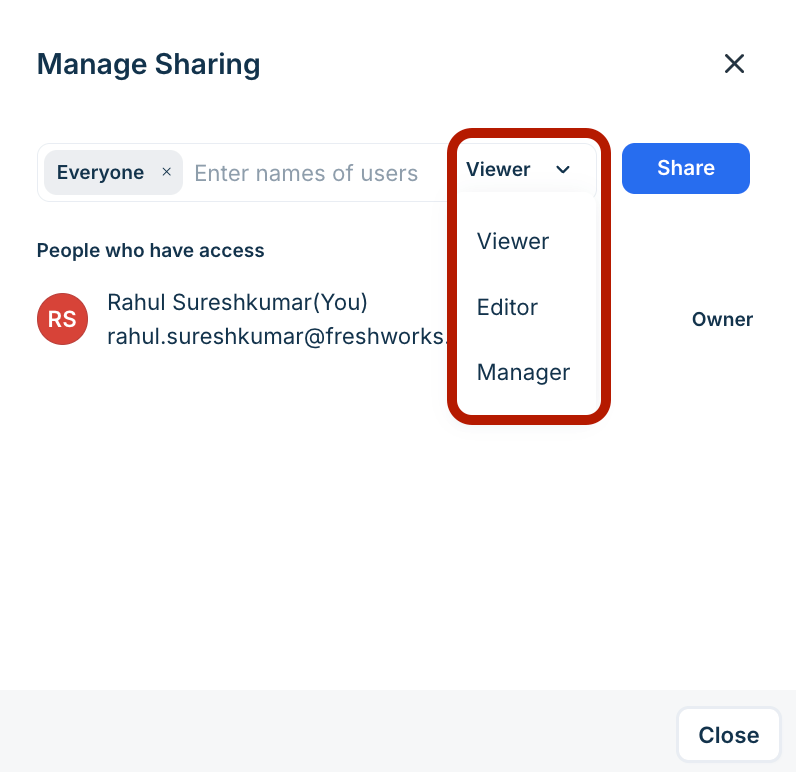
Click Share.
Note: You can also manage folder sharing access with the View details > Manage Access option available under the ellipsis icon next to a folder.
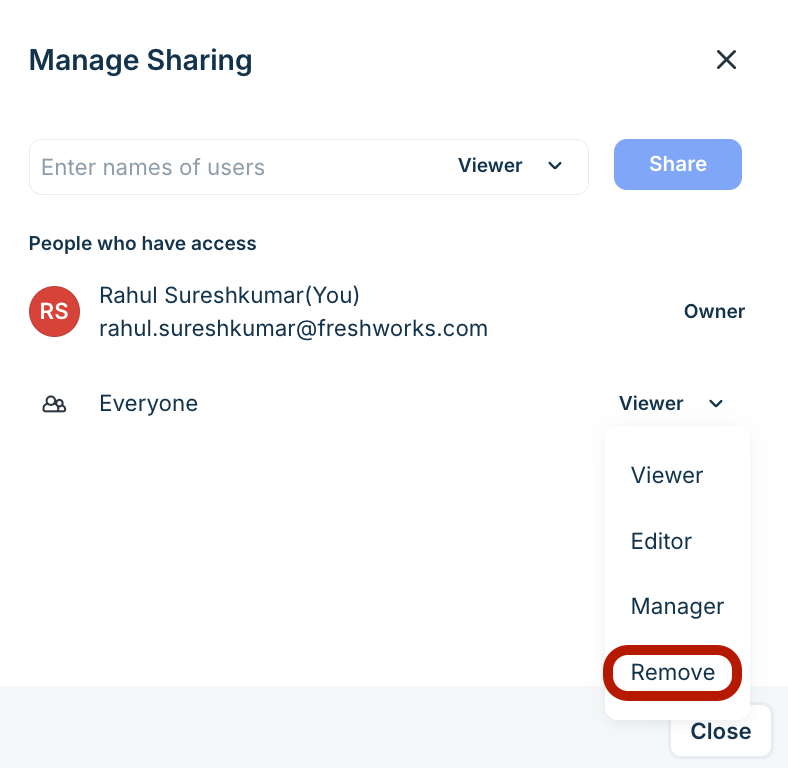
(To remove any folder sharing access) Click the ellipsis icon next to a folder, and click Manage sharing.
In the Manage Sharing dialog, click the permissions dropdown next to a user or group you want to remove. Then, click Remove.
Folder management access levels
When sharing a folder, you can assign one of three access levels to collaborators:
Viewer access lets you view the folder and the reports inside the folder.
Editor access lets you modify folder details, including the name, description, and icon color. Along with edit access to a folder, if you have manage access for a report, you can add the report to the folder or remove the report from the folder.
Manager access to a folder lets you update the permissions of users who already have access to the folder and set access for new collaborators.
Reports inside a shared folder automatically inherit the folder’s access permissions, saving time for large teams. But if the report access level is higher than the folder access level, the higher access level is automatically applied to report actions.
Example 1: If you have edit access (higher access) to a report but only view access (lower access) to its folder, you’ll have edit access to the report.
Example 2: If the report allows only view access (lower access) but the edit access (higher access) to its folder, you’ll still be able to edit the report.
Example 3: To delete a report from a folder with edit access (lower access), you should have at least manage access for the report to be deleted (higher access).
Note: Report owners or managers can modify the permissions that automatically get updated when a report is moved or shared, or when a folder is shared, allowing them to maintain access permissions for reports and safeguard sensitive reports.
Folder management roles and actions
Folder Owner, Manager, Editor, and Viewer roles determine what you can do with the folder and reports.
Folder ownership
When you create a folder, you are the owner of the folder. As a folder owner, you can transfer the ownership of the folder to another user. You are notified before updating the ownership when downgrading to a lower access level. A confirmation prompt appears before the transfer is initiated.
To transfer ownership of a folder, follow these steps:
1. Go to Reporting > Analytics, and click My Reports.
2. Click the ellipsis icon next to a folder, and click Manage sharing.
3. In the Manage Sharing dialog, click the dropdown next to a user’s name.
4. Click Make Owner.
5. Then, click Downgrade to transfer the ownership.
Note: Changing the folder ownership doesn’t change the report ownership, and each report within the folder retains its original owner.
Move reports between folders
You can move reports between various folders under My reports, or move reports directly under the My reports list view.
Note: To move a report to a folder, you need to have Manage access permission for the report and at least Edit access on the folders.