 Community
 Video Library
 Agent Training
 Freshservice
 Freshdesk
 Freshchat
 Freshcaller
 Freshsales
 Freshteam
 Freshworks Neo
 Freshsurvey
Overview
If your organization is on a paid subscription plan, you must use two-factor authentication to sign in as an org administrator. Two-factor authentication adds an additional verification step when you sign in with your password. It also adds a vital security layer that stops hackers from gaining access even if they manage to steal or predict an admin's password.
When your organization upgrades to a paid plan, the two-factor authentication requirement is applied automatically. You must configure two-factor authentication to access your account. This requirement cannot be turned off for paid organizations.
You can configure one of the following two-factor authentications while signing in to your Freshworks account:
Time-based one-time password using an authenticator app (recommended) - use an authenticator to authenticate.
Email verification - receive OTP in your email ID to authenticate.
Note - If an administrator configured two-factor authentication before the organization upgraded to a paid subscription plan, the existing two-factor authentication configuration remains valid.
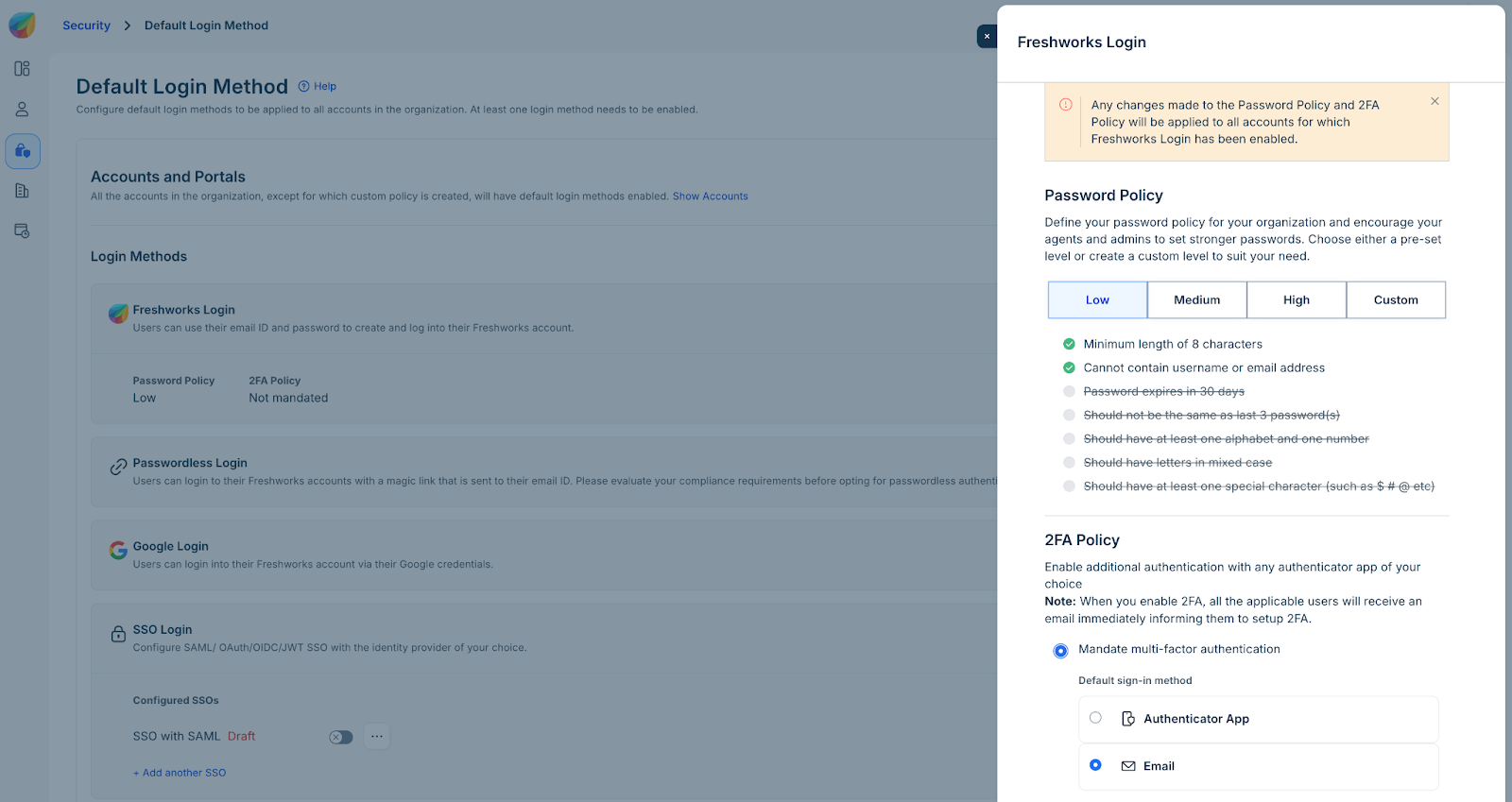
Administrators can review two-factor authentication status on the Security settings page as shown in the following image.
Set up two-factor authentication
After your organization upgrades to a paid subscription plan, you are prompted to set up two-factor authentication the next time you sign in. Follow these steps to complete the setup.
Sign in to your Freshworks account.
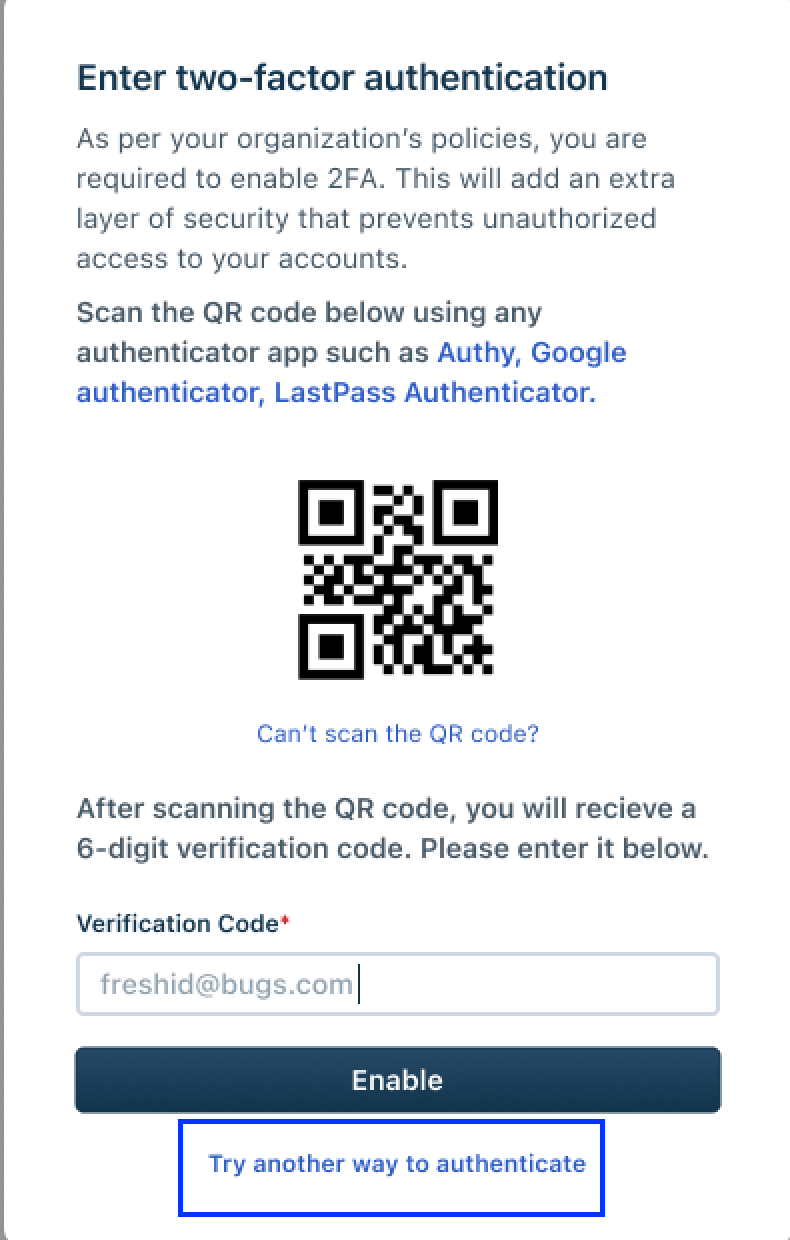
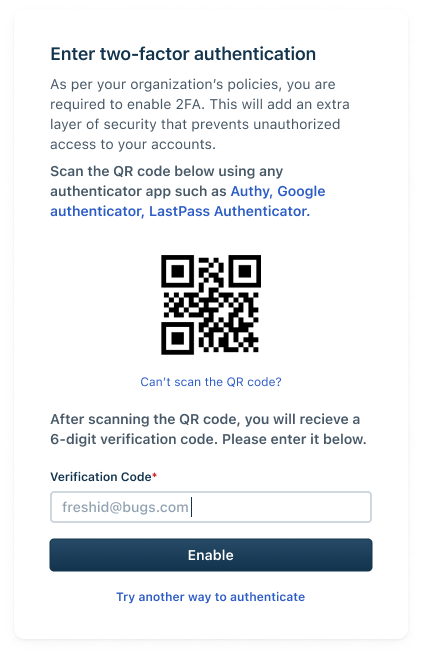
If two-factor authentication is not configured, you are prompted to set up two-factor authentication and the following page is displayed.
To use your authenticator app, follow these steps
Copy a verification code from the authenticator app and enter in the Verification Code field.
Click Enable.
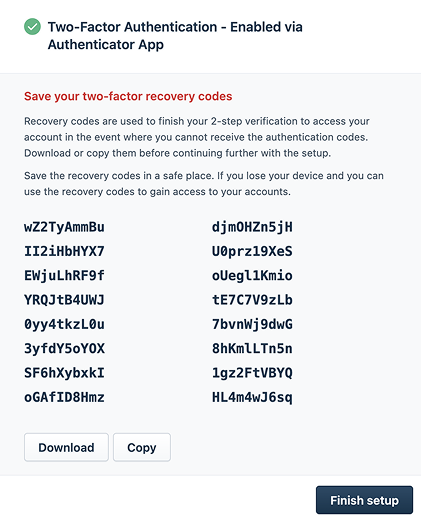
The following page is displayed with a list of recovery codes.
In case you lost your authenticator app, you can use these recovery codes to log in to your account.Save these recovery codes securely and click Finish setup.
To use Email verification setup, follow these steps:
Click Try another way to authorize.
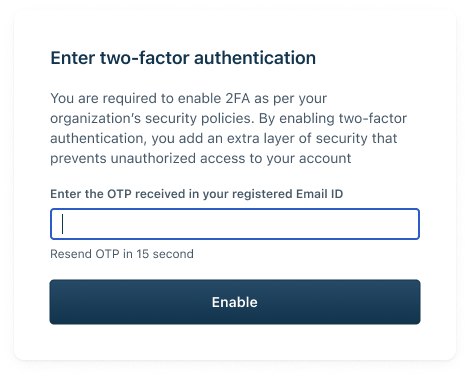
An OTP is sent to your email ID.Enter the OTP as shown in the following dialog box.
Click Enable.
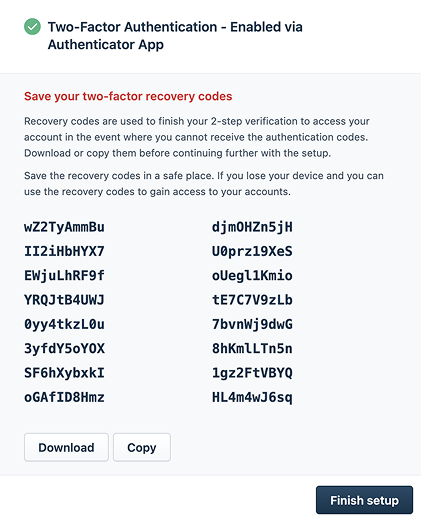
The following page is displayed with a list of recovery codes.
In case you lost your device to use the email verification, you can use these recovery codes to log in to your account.Save these recovery codes securely and click Finish setup.