
 Community
 Video Library
 Agent Training
 Freshservice
 Freshdesk
 Freshchat
 Freshcaller
 Freshsales
 Freshteam
 Freshworks Neo
 Freshsurvey
You can export your analytics data which can come in handy when you want to perform rigorous analysis, with your BI tool. When you export your data from Analytics, you'll receive the .CSV file through email or an API link.
How to export your data from a report/widget
To learn about how you can export data from a report/widget, see Export reports and widgets.
How to schedule a data export
1. Log in to your Freshservice account as an Administrator/Supervisor.
2. Go to AI Insights and Analytics from the left navigation menu.
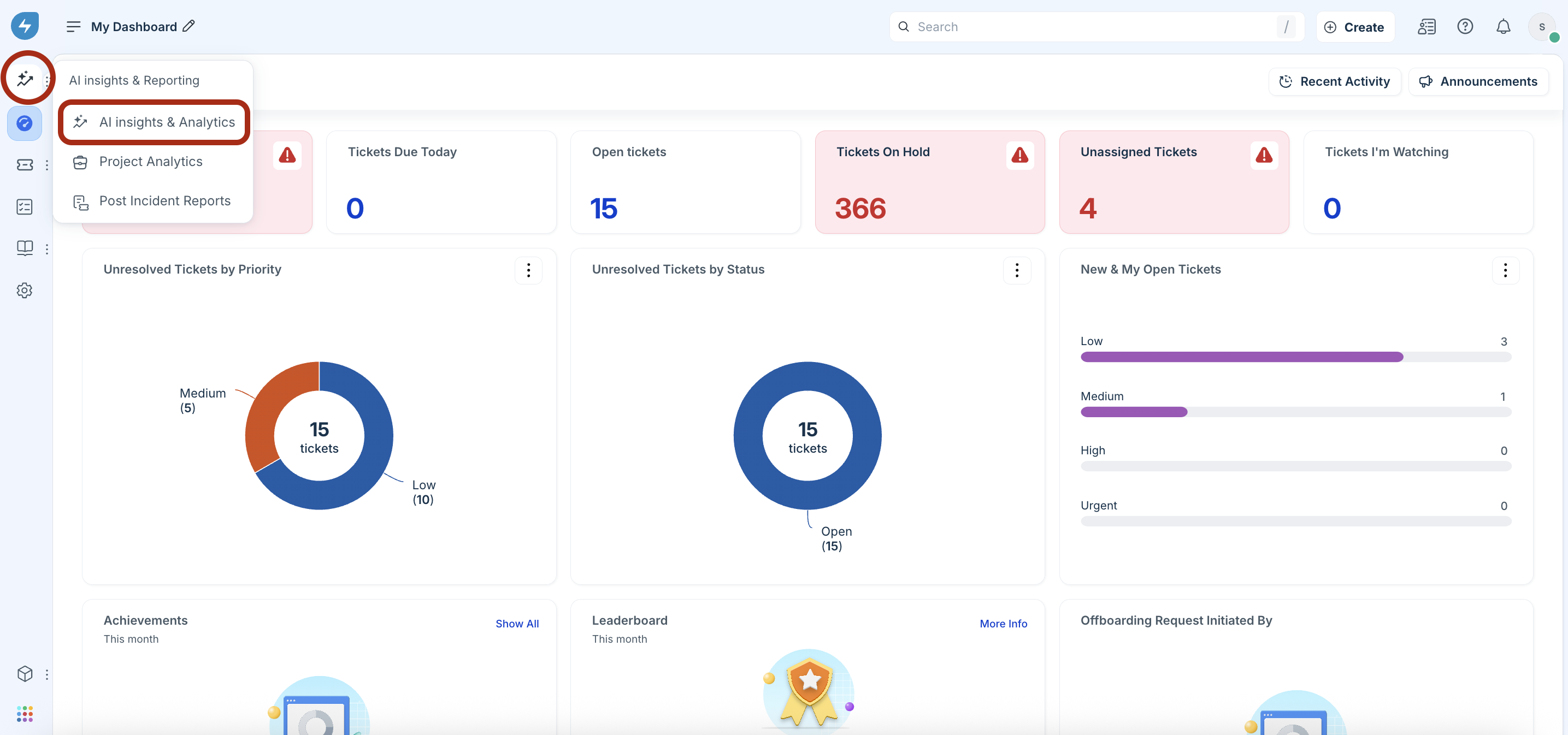
3. Select Analytics, then go to Settings > Data Export.
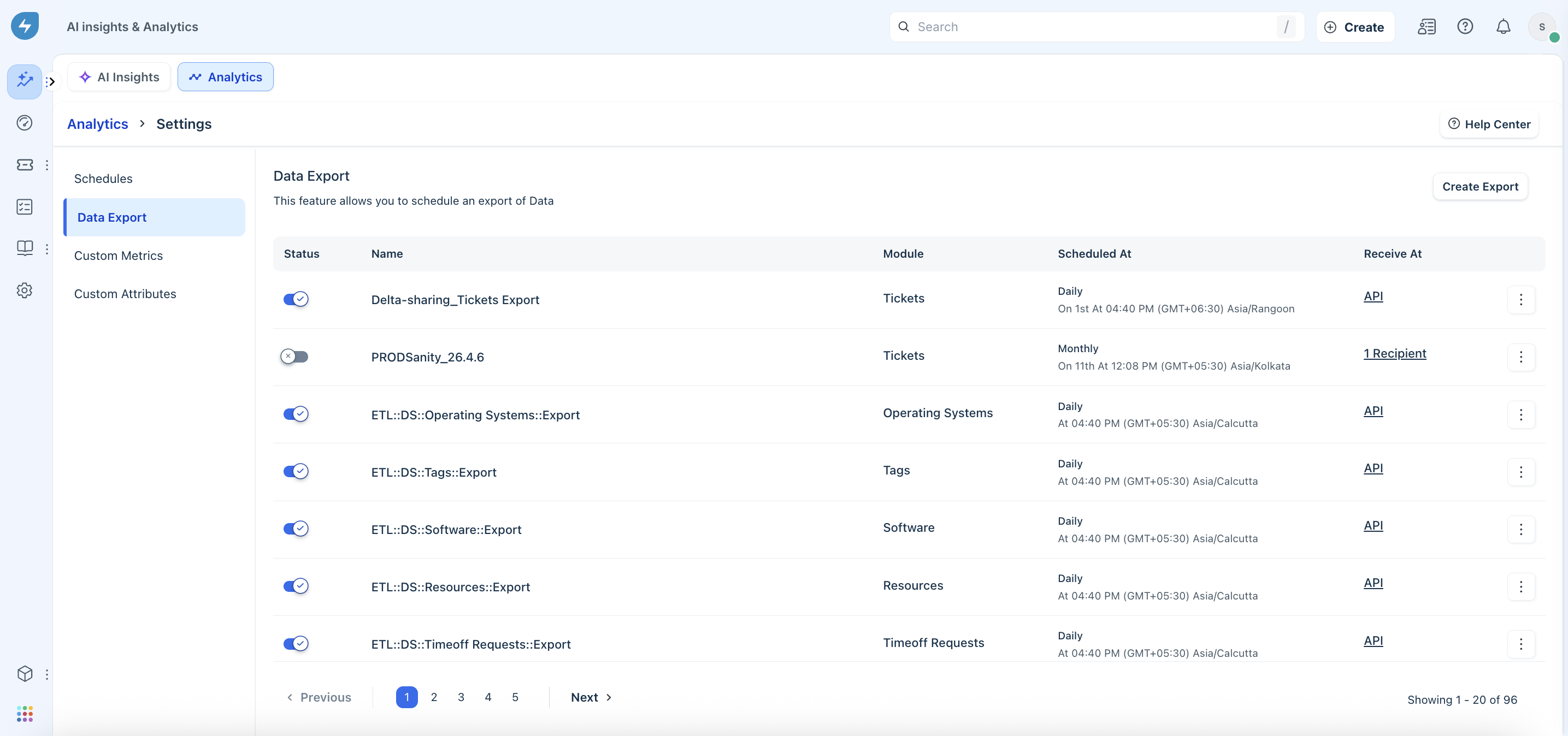
4. Click Create Export.
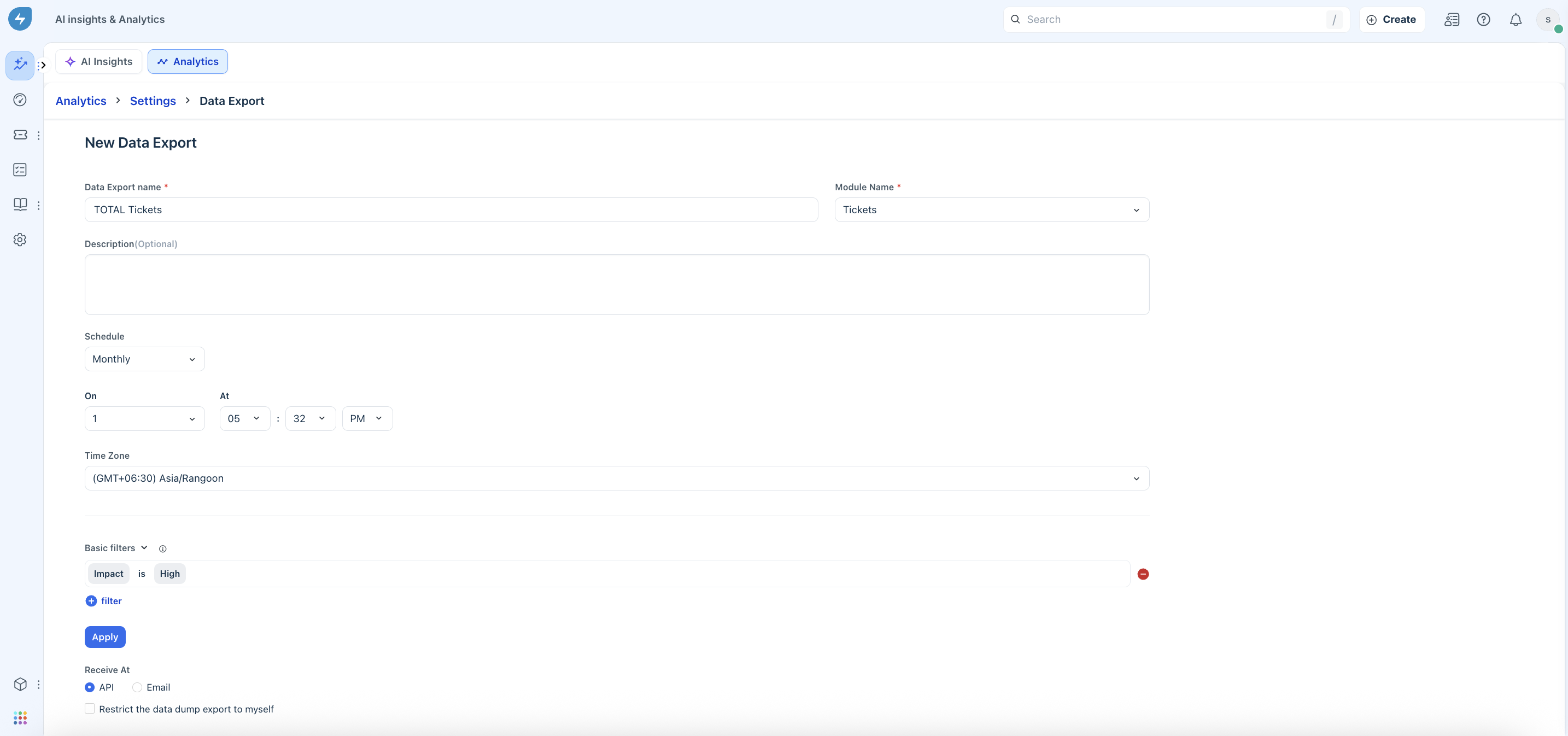
5. Enter a Name, Description and select a Module from which you want to export data (for example, Tickets).
6. Select when you'd like to receive the export from the Schedule dropdown, and then set the required time.
7. Select the relevant timezone from the dropdown.
8. Set the required filters.
9. Select API or Email as the Receive at option.
10. Choose all the fields for export.
11. Click Schedule.
If you'd like to receive the file via API:
Copy and paste the API URL in your Business Intelligence tool.
Once you hit the API from your BI tool, you will receive a response in the following format:
{ "export":{
    "created_at":"DD-MM-YYYYTHH:MM",
    "url":"..."
}
}How to access your data exports
- To view the exports that you had scheduled, go to Analytics > Settings > Data Export.
- Click any export name in the Data Export list to view and update the data export schedule. Note that you can use the Active toggle to activate/deactivate a schedule.
- Click the ellipses icon next to an export name in the Data Export list to Download or Delete a data export.
Note: If you need assistance from a developer to access the API, ensure they have access to the API key of the person who created the schedule.
Take me to the Freshdesk, Freshservice, Freshsales, Freshcaller, Freshrelease and Freshteam support portals.