
 Community
 Video Library
 Agent Training
 Freshservice
 Freshdesk
 Freshchat
 Freshcaller
 Freshsales
 Freshteam
 Freshworks Neo
 Freshsurvey
You can manage access to your Freshdesk support portal using IP restrictions across channels. This article provides detailed instructions on how you can allow or deny specific IP addresses, which is crucial for preventing unauthorized access, reducing bot traffic, and stopping spam.
TABLE OF CONTENTS
Prerequisites:
To view, enable, or edit IP restrictions, ensure that you have account admin, admin, or custom roles with explicitly enabled 'Play God with Super Admin controls' permissions.
About IP restrictions
IP restrictions in Freshdesk provide a network-level security mechanism that lets you control access to your support system by defining allow or block lists of IP addresses.
Using the allow list, you can restrict access so that only specified IP addresses can log in or interact with your support channels, such as the agent portal, customer portal, web chat widget, web form, and mobile chat SDK. A block list prevents specific IPs from accessing the system.
Additionally, Freshdesk includes safeguards to prevent you from blocking your own IP address and sends email notifications whenever configuration changes are made.
Note:If an IP address is present in both lists, the block list always takes precedence. Also, IP restrictions applied across your various channels become active as soon as they are configured.
This feature helps you improve the security and reliability in the following ways:
- Reduce spam and bot-generated traffic by blocking automated or repeated requests from suspicious IP addresses.
- Restrict high-volume traffic at the network level.
- Allow only trusted IP ranges to access your support system to prevent unauthorized access.
Use a sandbox environment for testing
You can use a Sandbox environment to safely test IP restriction configurations before applying them to your production account. This helps ensure that valid users are not unintentionally blocked due to incorrect IP entries or scope selection.
Configure IP restrictions
You can choose whether to allow or block IP addresses only for the agent portal or across all supported support channels.
When an IP address is blocked:
- Users cannot access the customer portal and may see an access error
- Chat widgets and mobile SDK may fail to load and display a generic error
- Active user sessions are terminated automatically
- The system does not explicitly indicate that the IP has been blocked
To configure IP restrictions:
- Log in to your account as an admin.
- Go to Admin > Security.
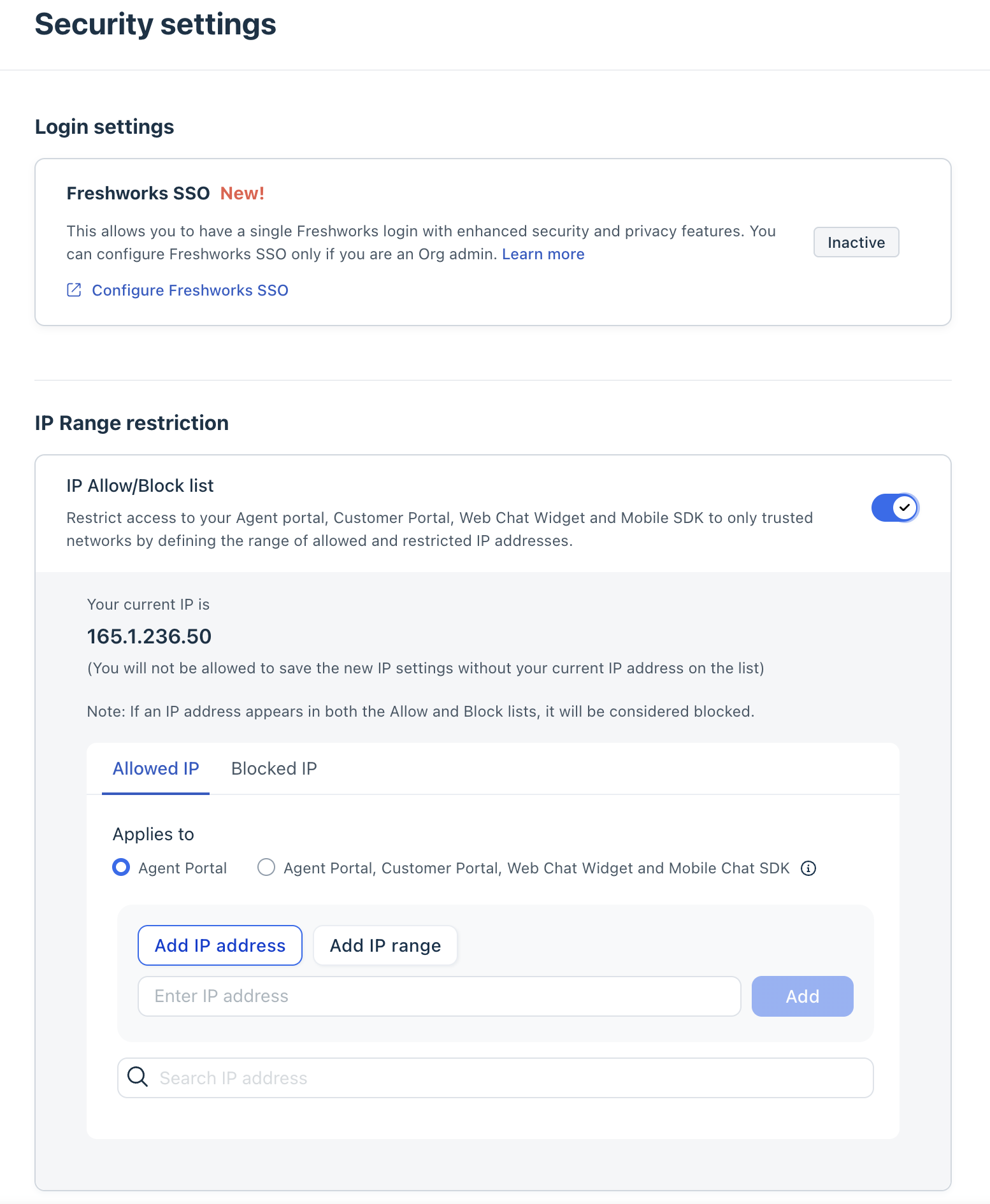
- Turn on IP Allow/Block list.
- Select Allow IP or Block IP list.
- For each list, choose the application scope:
- Agent portal: Restrict access only to your team
- All support channels: Apply restrictions across agent portal, customer portal, web chat widget, and mobile chat SDK.
- Enter a single IP address or range in the format:
from <IP address> to <IP address>
Note: You can configure up to 900 IP entries under the fair usage limit (FUP). A maximum limit of 1800 entries applies across all IPs (including ranges and single IPs). If your account exceeds FUP, you cannot add new IP addresses. - Click Save.
Once configured, changes take effect immediately, and email notifications are sent to configured admins whenever IP restriction settings are updated.
If you are accidentally blocked and need to regain access, you can reply to the same email for support.
Block an IP from a ticket or contact
To block a user’s IP:
- Open the ticket or contact.
- On the right pane, click Device Info.
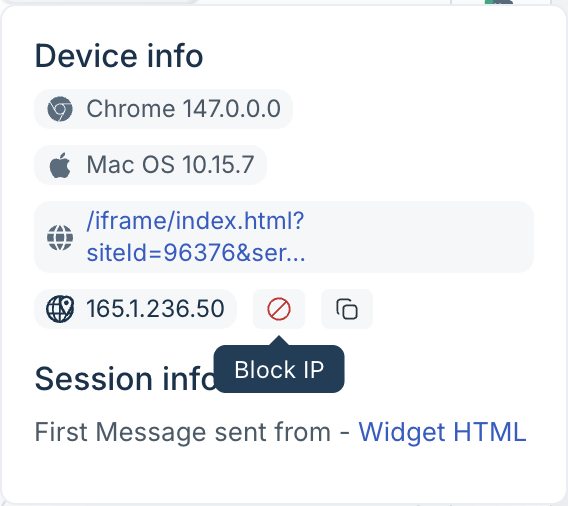
- Click the Block IP icon next to the IP address.
Once blocked, the IP address is displayed in red, crossed out, as a Blocked IP address.
Note: IP restrictions apply only to inbound interactions. Blocking an IP does not affect outbound communications.